HUB / Manager
Organizes scenes, rooms, the library and commands. Pro adds permissions, auditing and central management according to enabled features.
Bring websites, documents, videos, cameras and remote computers together in scenes for monitors, video walls and LED displays.
Choose ready-made scenes on the virtual phone, switch layouts and control each piece of content on the wall.
A simulation to try the controls. Works with mouse and touch, with no registration.
A scene stores the content and position of each display area, called a slot. You prepare the composition, save it and apply it when you need it.
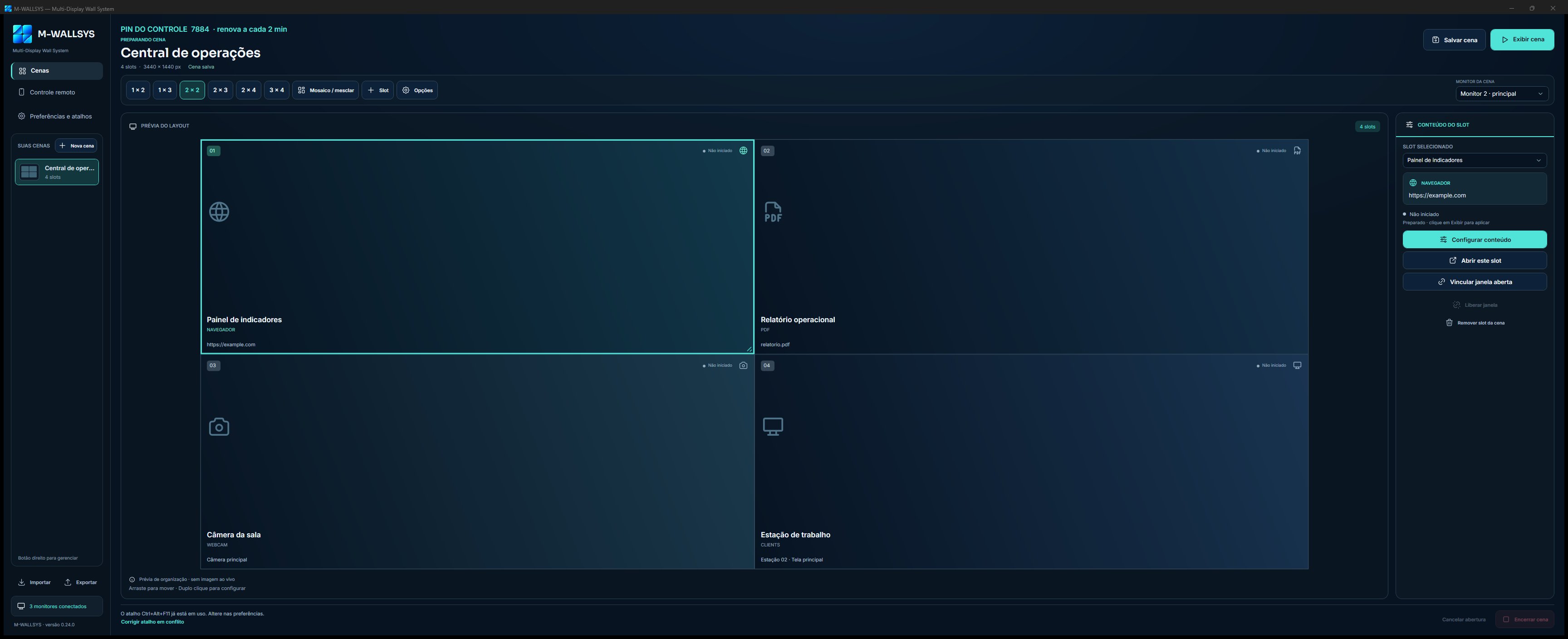
Choose the screens and the layout grid.
Define the content of each area.
Save the layout to reuse.
Apply the composition to the screens.
Mix local media, web pages and live sources according to the presentation objective.
Connections and formats depend on installed software, drivers, equipment and network. Source compatibility is checked for each project.
The Principal, HUB / Manager and Client work together, with defined roles for composition, management and content sharing.
Organizes scenes, rooms, the library and commands. Pro adds permissions, auditing and central management according to enabled features.
Runs on the Windows PC connected to the screens. GPU capabilities, outputs and resolution determine practical display capacity.
Shares content sources approved on the source computer. Video streams directly to the Principal over WebRTC; the HUB manages pairing and permissions.
Choose the content sources a computer can share and authorize its connection to the system.
Monitor, screen region, window, or camera available on the PC.
Initial pairing is approved locally in the Client and remains saved until revoked.
Audio and keyboard/mouse control require separate consent. Advanced control depends on the edition and source.
On your local network, open the room address or scan the QR code, then enter the PIN shown by the Principal.
Switch the presentation and select the content you want to control.
Move through pages and slides, and use the controls available for images or videos.
Trackpad, scrolling, and keyboard work on supported and authorized destinations.
Open another address during the presentation, preserving the saved scene.
Sessions can last 60, 120 or 240 minutes. The expiry time is fixed: activity and reconnection do not extend it. Available features depend on the edition and source.
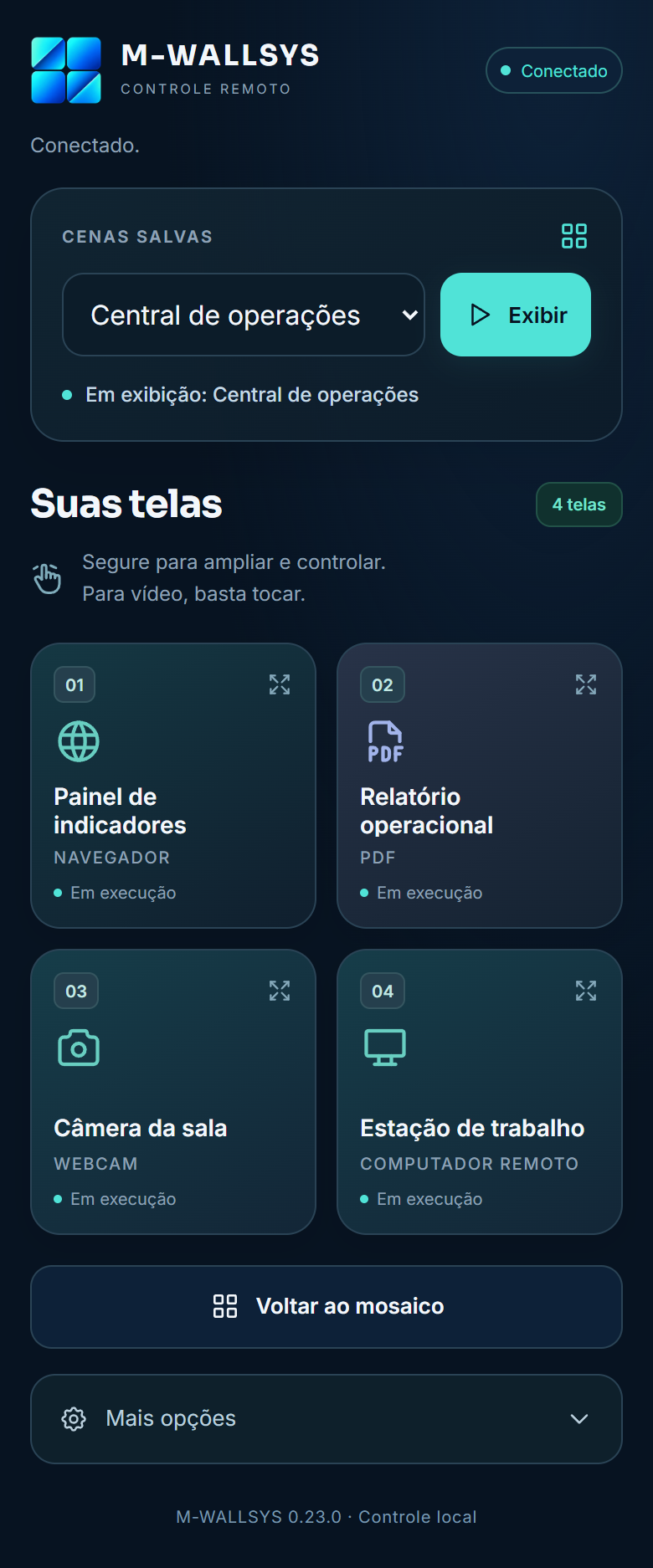
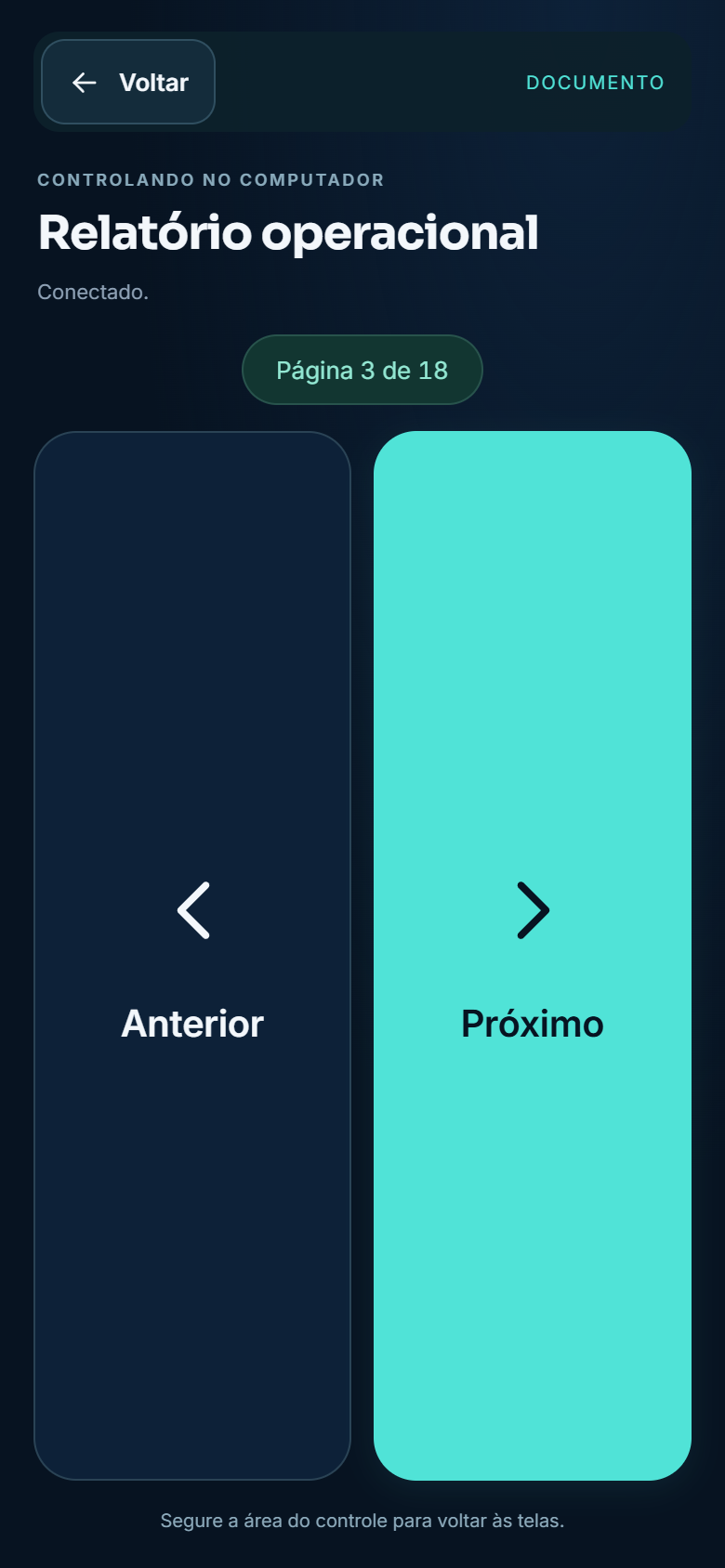
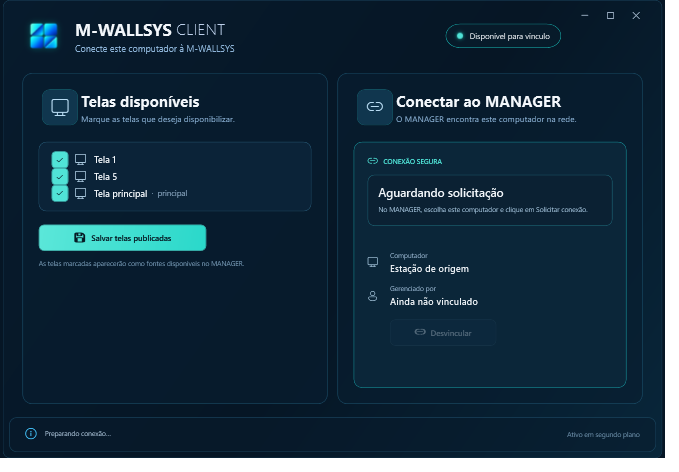
Remote control screenshots in Portuguese showing demo content.
Prepare layouts in the HUB and manage room operations in your browser. Editing, saving and displaying a scene are separate steps.
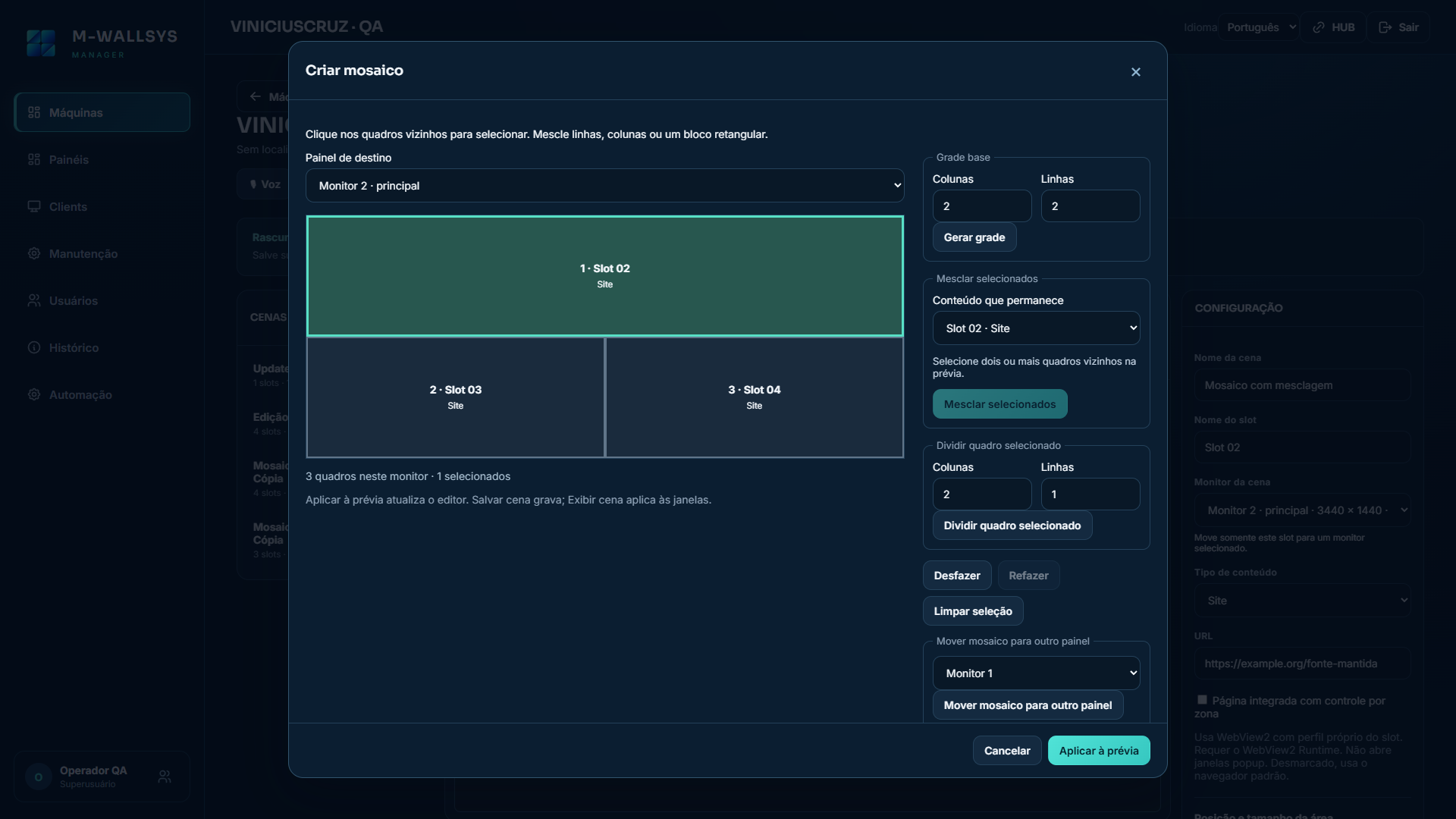
Create and save scenes in the HUB even when the Principal is temporarily disconnected. The Principal must be connected to display them on the screens.
Select, merge, split and adjust areas. Check the preview before applying; use Apply/Cancel and Undo/Redo while editing.
Organize files by room, keep versions and tags, duplicate scenes, and import or export scene settings in JSON.
Combine scheduling, scenarios with scene sequences, manual advancement and authorized events, as supported by your license.
The editor preview shows the layout geometry. A live video preview of the wall is a planned feature.
Core covers scene composition and room routines. Pro adds broader control, permissions and management capabilities.
| Feature | Core | Pro |
|---|---|---|
| Scenes, mosaics and content sources | Included | Included |
| Schedules, scenarios and library | Included | Included |
| Browser control | Basic | Advanced* |
| Room permissions and auditing | Not included | Included |
| Room and wall management | Not included | Project dependent* |
| Telemetry and alerts | Not included | Environment dependent* |
| Fixed display limit in the license | No fixed limit* | No fixed limit* |
* These terms follow the documented current licensing policy. Legacy licenses may have their own limits. Advanced control, multiple walls, telemetry and alerts depend on enabled features and installation validation. No fixed license limit does not mean unlimited hardware capacity.
The license identifies the PC connected to the screens.
Expand with packs of ten additional Clients.
From the last validation, within the authorized period.
Contact NOVAXD to choose your edition and content sources, and size your installation.
Find the right edition for my projectBring together indicators, maps, cameras and remote stations in the same monitoring environment.
Combine presentations, documents, websites and content from an authorized computer.
Arrange videos, images and information across your monitors, video wall or LED display.
Your project is sized around Windows x64, GPU capabilities, video outputs, resolution, network and the software required by your content sources.
Initial activation requires internet access. Offline authorization is time limited; websites and other online sources still require a connection.
Office, USB, NDI, ONVIF, KVM, GPU composition, multiple walls and recovery must be tested in the final environment. Performance depends on the combination of hardware, content sources and network.
Live wall preview, hardware H.264 encoding, phone screen mirroring and a Windows IoT appliance are planned developments with no announced release date. These features should not be considered included in a current purchase.
Phone control already lets you operate presentations on compatible targets. Mirroring the phone's own screen to the wall is a planned feature.
Tell us what content you want to display, the number and type of screens, and who will operate the system. NOVAXD can demonstrate the product and guide you through licensing and deployment.
Request a demo and purchase options